

How To Take Your Wisdom Academy Course
If you need help accessing or taking your course, please read all the information below—most questions can be resolved with this information. Thank you!
1. Check your email inbox for the welcome email.
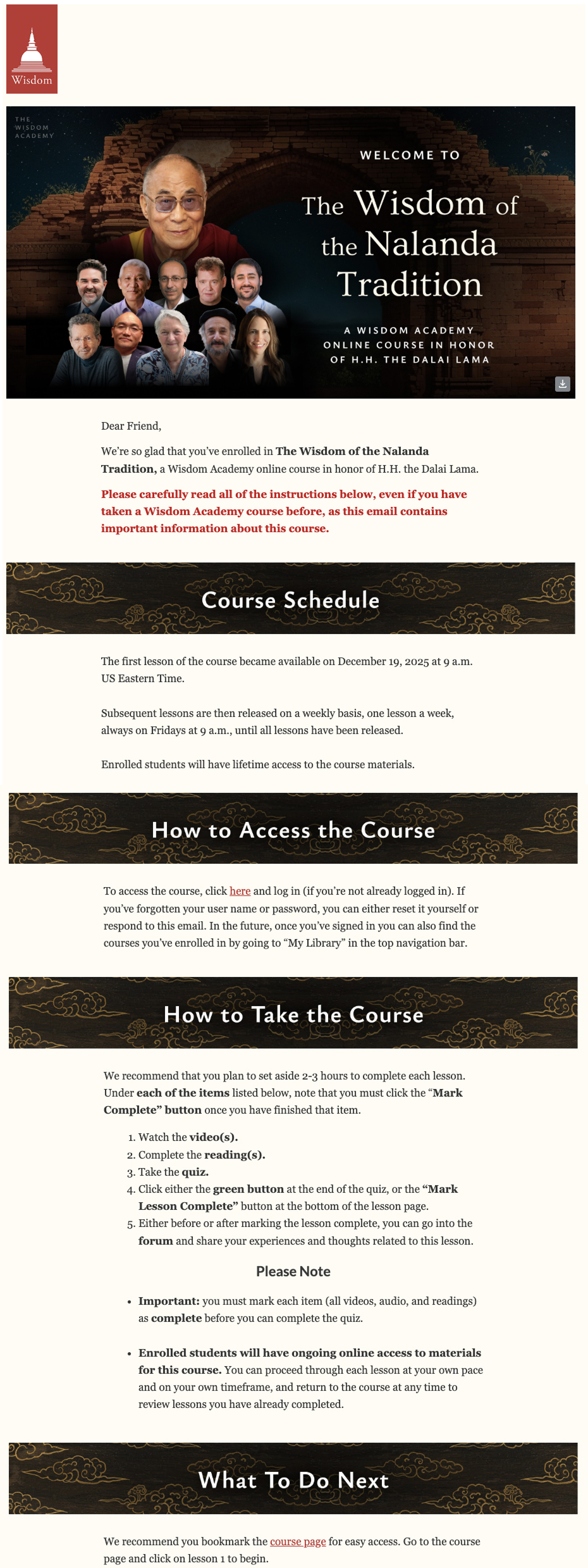 • The welcome email includes important information, so it’s strongly recommended that you read it and save it to refer to later.
• The welcome email is separate from the order confirmation email.
• If you did not receive the welcome email, check your spam and trash.
• If you can’t find the email anywhere, it may mean that you’re unsubscribed from Wisdom emails. This means you won’t get any further emails from us, including welcome emails, lesson release reminders, and Q&A signup information. To resubscribe, contact us here.
2. Access your course
1. Find the course in your Library. To access your course, you must be logged into the website with the same account that registered for the course. You can then navigate to “My Library” (see screenshot below) and find the course under Wisdom Academy courses. Click the arrow on the right end of the Wisdom Academy “carousel” to scroll through your courses so you can find it.
If you don’t see the course, please confirm that you are logged in with the same account that purchased the course.

2. Having trouble logging in? If you’re having trouble logging in, please click “forgot password” in the log-in area and follow the prompts to reset your password.
3. Multiple accounts? Make sure you logged in with the same account that purchased the course.
4. Once you’re on the course page, click on the lesson you wish to access.
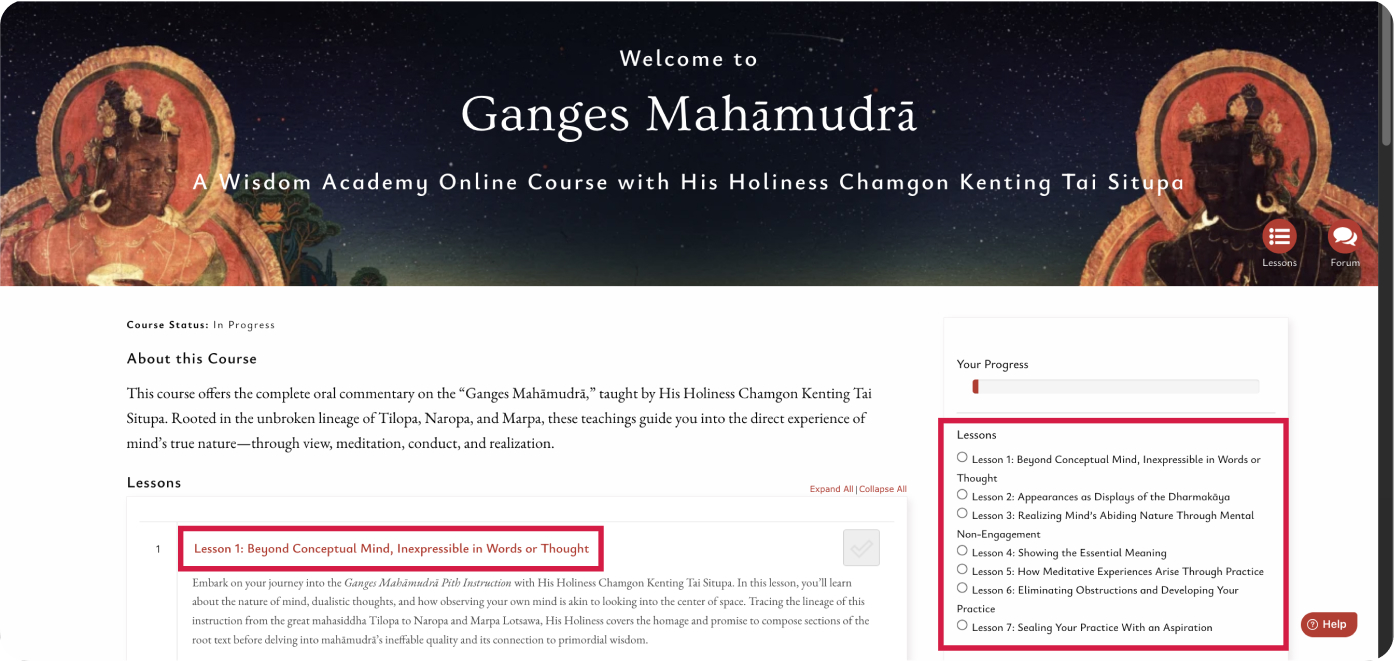
Most course lessons will include one or more videos, audio practices, readings, and a quiz. To complete the lesson, you must complete all these items per the instructions below.
You must complete each lesson in order to proceed to the next lesson.
1. Watch the video(s).
• To complete the video item, under each video, click the red button that says “Mark Complete.” This button can be found below the video in the lightbox pop-up.
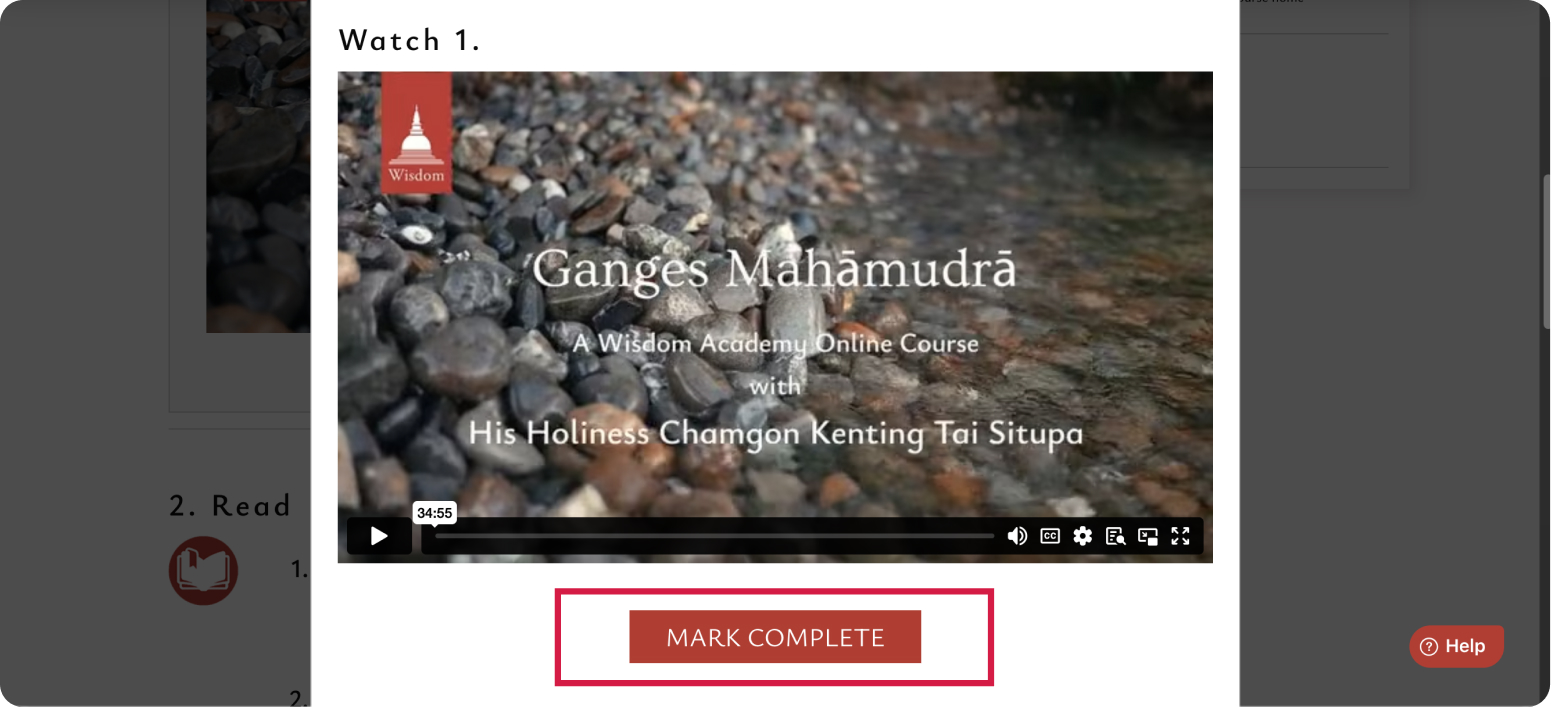
• Do not click on the checkmark icon.
• The mark complete button is there for every video, audio, and reading item in Wisdom Academy courses, so if you can’t see it, it’s likely an issue with your browser or device. Please try in a different browser and on a different device before contacting us, as this will resolve the issue in most cases. Some iPads do not display the button, so in those cases, we especially recommend trying on a computer.
2. Read the reading(s).
• If you can’t see the reading, it’s most likely a browser or device issue. Please try in a different browser and on a different device before contacting us, as this will resolve the issue in most cases.
• To complete the reading item, under each reading, click the red button that says “Mark Complete.” This button can be found below the reading in the lightbox pop-up which contains the PDF reader. You will see it when you scroll to the bottom of the lightbox.
• Do not click on the checkmark icon.
• If you can’t see the mark complete button, please see the information above regarding this before contacting us.
• If the reading text is too small, use the zoom in button or download the PDF (see screenshot below).

3. If the course has guided audio meditations/practices, follow those to completion.
• To complete the audio item, under each audio item, click the red button that says “Mark Complete.” This button can be found below the audio player in the lightbox pop-up.
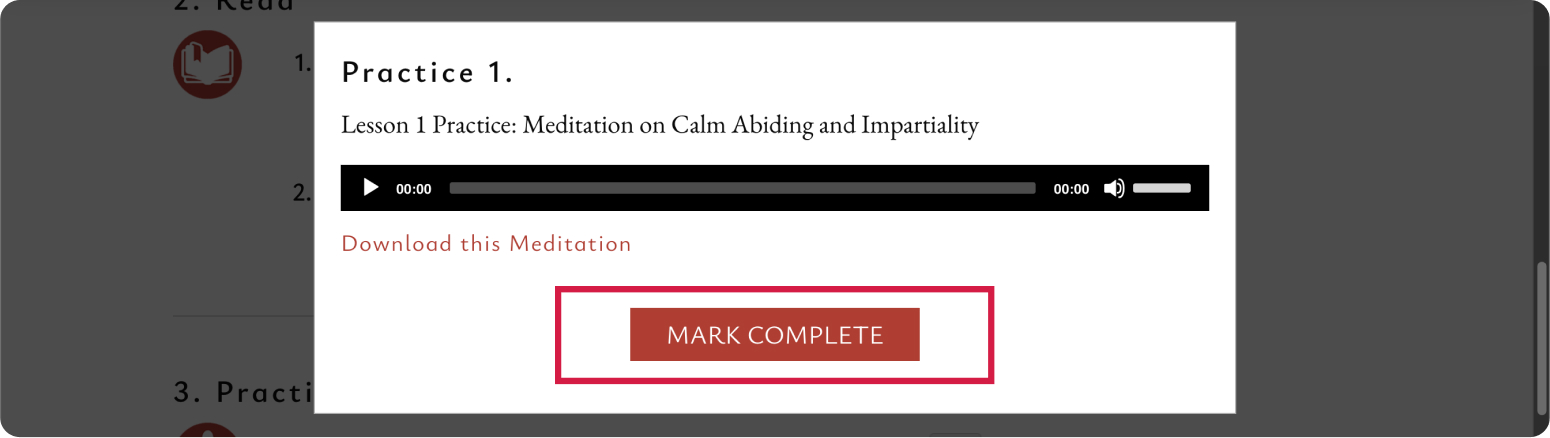
• Do not click on the checkmark icon.
• If you can’t see the mark complete button, please see the information above regarding this before contacting us.
4. Take the quiz.
Click on the quiz (near the bottom of the lesson page) and proceed through the questions. Most courses require a score of 80% or more to pass the quiz. You may take the quiz any number of times.
5. Proceed to the forum.
If you wish, you can then click on the forum (near the bottom of the lesson page) and share your thoughts there in the appropriate thread.
Course materials display correctly for the majority of students, so if they’re not displaying correctly for you, please try the following before contacting us.
• Restarting your browser.
• Logging out and back in to your Wisdom account.
• Accessing on a different browser (Chrome, Safari, Firefox, etc).
• Restarting your device.
• Trying on a different device.
• Trying on a different wifi/internet network.